Screenshots
How it works
Pick a folder
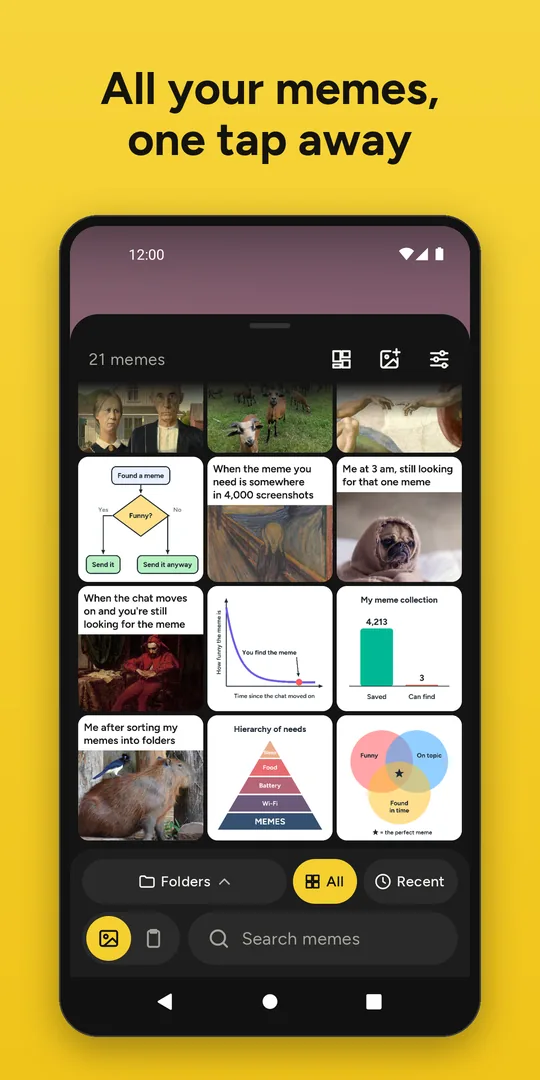
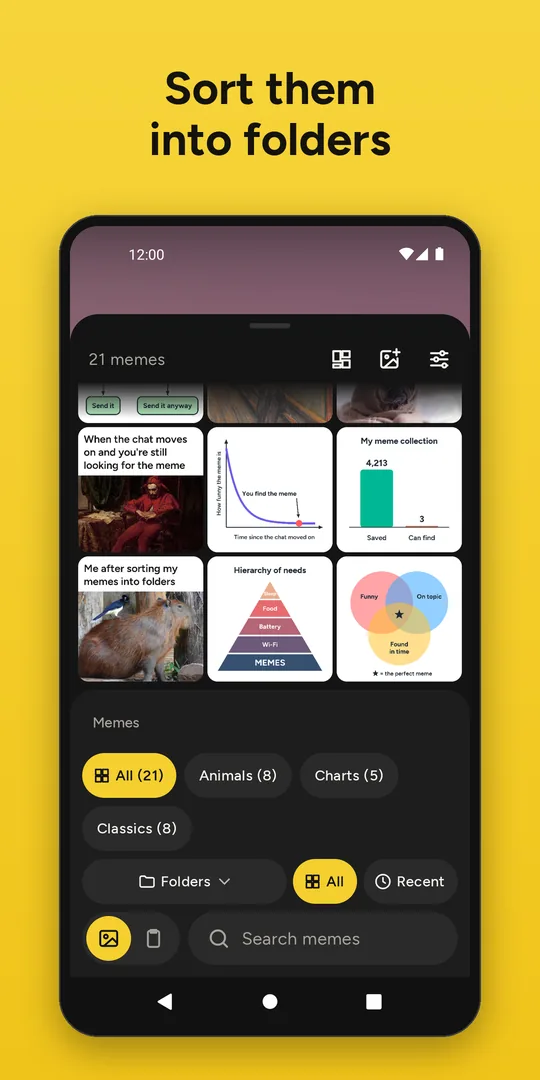
Your memes stay ordinary image files. The file name is the meme's name, and subfolders work as categories.
Add the tile
MemStash offers to put its tile in Quick Settings. The tile opens the app on top of whatever you are in.
Search and tap
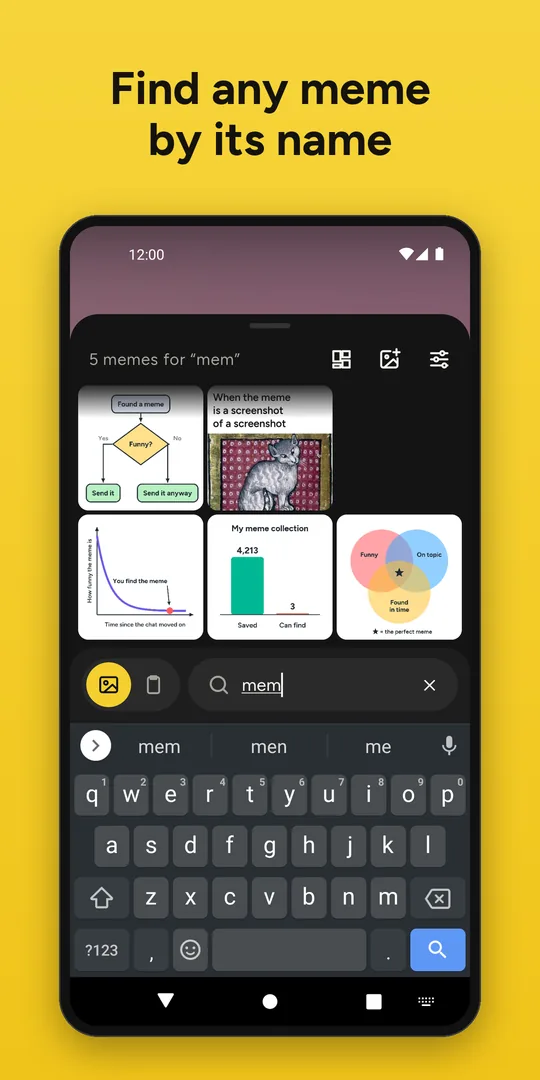
In a chat, pull down Quick Settings, tap the tile, type a few letters and tap the meme.
MemStash hands the meme over the way the chat can take it:
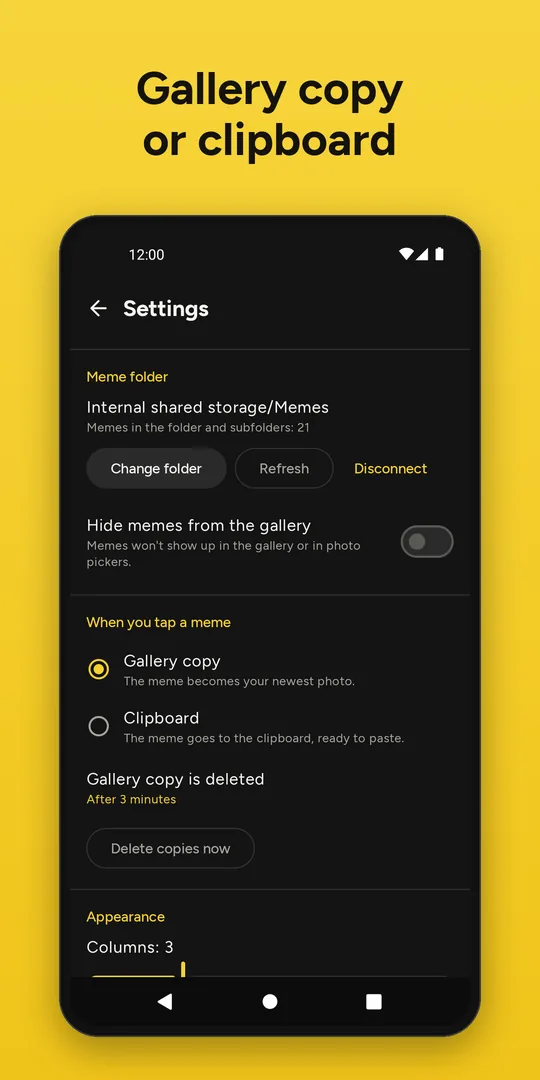
Gallery copy
The meme becomes your newest photo, first in the chat's gallery picker. Each copy replaces the previous one and is deleted automatically, after 3 minutes by default.
Clipboard
Paste the meme from your keyboard, like any copied image.
Also in the app
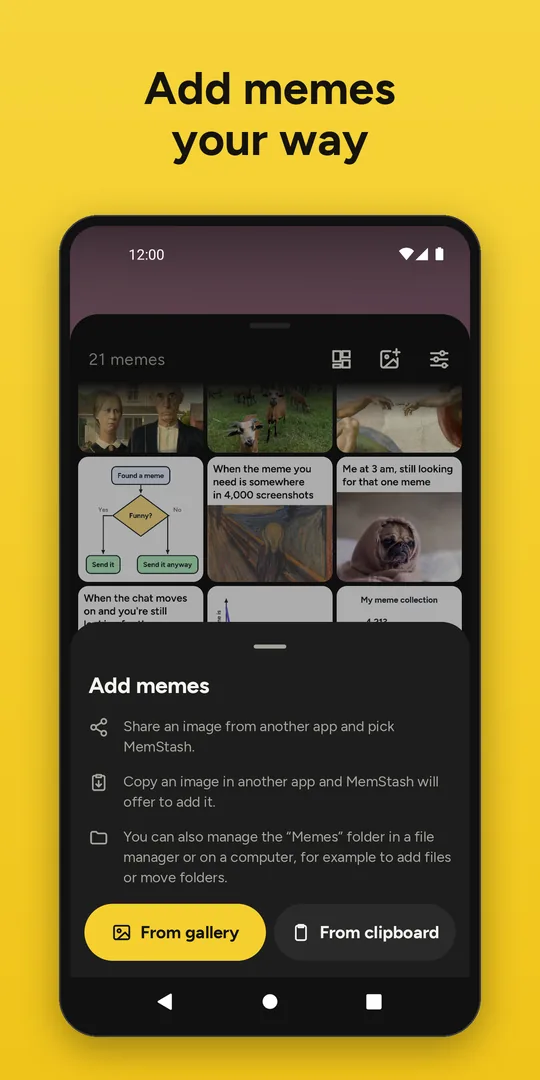
- Add memes from the share menu, the photo picker or an image you copied in another app.
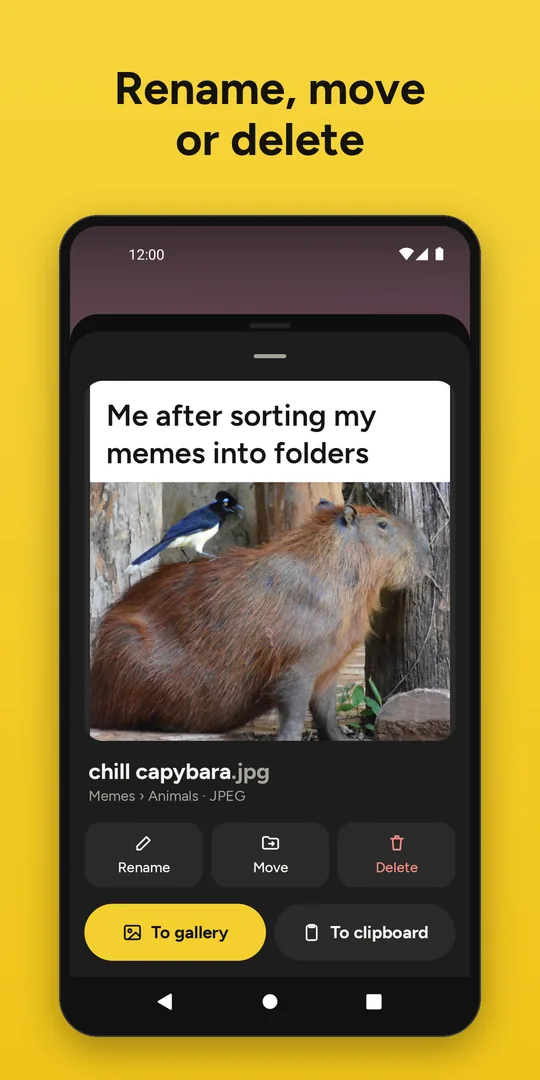
- Rename, move and delete memes and create, rename and delete folders in the app, or manage the folder with any file manager or from a computer.
- Square or whole-meme grid, recently sent memes, folders ordered by last use.
- Hide your memes from the gallery and photo pickers.
- JPEG, PNG, GIF, WebP, HEIC, AVIF and BMP (AVIF previews need Android 12 or newer).
- English and Polish.
Private by design
MemStash has no internet access, no ads, no tracking and no account. It sees only the one folder you choose and needs no storage permission. The code is open source, so anyone can check this.
Good to know
- MemStash doesn't back up your memes. To move them to a new phone, copy the meme folder with a file manager or a computer, or keep it in a cloud folder and pick it on the new phone.
- Gallery copies go to
Pictures/MemStash. If your gallery app backs up all albums, turn off the backup of that album.